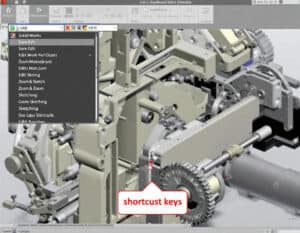
Because we use Soliworks CAD for years (now decades in fact!), speeding through with SolidWorks shortcuts in SolidWorks means keeping your hands on the keyboard as much as on the mouse, and the shortcuts below cover the moves you’ll reach for most: saving and editing, spinning and zooming the view, jumping to a standard orientation, filtering what you can click, sketching lines and relations, rebuilding features, wrangling assembly components, and cleaning up drawing views.
They’re grouped by that workflow rather than listed alphabetically, and within each group the shortcuts run from the one you’ll use constantly down to the one you’ll reach for occasionally – so skim the top of each list first if you’re only picking up a handful.
Tip: default keymap – check Tools → Customize → Keyboard if yours has been customized.
Note: we have put in red-bold, our own best time-savers SolidWorks shortcuts.
Bonus: Mouse shortcuts
| Left mouse button | Middle mouse button / scroll wheel | Right mouse button |
|
|
|
SolidWorks Shortcuts
View Navigation & Zoom
Standard View Orientations
Selection Filters
| Sketching
Features & Part Modeling
Assembly
Drawings
|
Display, Appearance & Visibility
Help, Search & Interface
| Usual Windows-inspired ShortcutsFile & Document Management
Selection & Editing
|
External Links on SolidWorks
(hover the link to see our description of the content)