工学や学術分野において、質の高い文書作成の重要性はいくら強調してもしすぎることはありません。精度と柔軟性で高く評価されている組版システムであるLaTeXは、技術文書の品質を向上させ、研究者や専門家の間で広く選ばれています。OverleafとACMが2019年に実施した調査によると、コンピュータサイエンスや数学などの分野の研究者の80%以上が、複雑な文書、特に複雑な数式を含む文書の処理に優れたLaTeXを利用しています。 この記事では、LaTeX言語の包括的な完全チートシートと、数式作成に特化した詳細な例を紹介します。
主なポイント
- LaTeXはコンテンツとレイアウトを効果的に分離します。
- 構成は前文と本文から成ります。
- 数式表記はテキストと見事に融合している。
- 図や表は簡単に参照できます。
- BibTeXのような他のライブラリは、引用文献の管理を驚くほど簡素化します。
Whether you’re crafting a thesis, a technical report, or a journal article, mastering LaTeX can significantly streamline your publication process and elevate your work in both academic and industry settings.
LaTeXは、本質的には高度な文書作成システムおよびマークアップ言語であり、特に複雑な数式や科学記号を含む文書をプロフェッショナルな品質で組版できることで知られています。元々は1980年代初頭にレスリー・ランポートによって、ドナルド・クヌースが開発したTeX組版プログラムをユーザーフレンドリーに拡張する目的で作成されました。
LaTeX入門とWYSIWYGエディタに対する利点

組版システムであるLaTeXは、特に科学技術分野における複雑な文書作成に役立つ数多くの利点を提供します。主な利点の1つは、一般的なWYSIWYGエディタではしばしば困難を伴う複雑なレイアウトや書式設定作業をシームレスに処理できることです。例えば、LaTeXは参考文献、引用、参照文献を強力に処理できるため、正確性と精密さが最優先される研究分野の専門家にとって最適な選択肢となっています。
もう一つの特筆すべき利点は、LaTeXで作成された文書の出力品質が非常に優れていることです。このシステムは組版のベストプラクティスに従っており、最終的な文書が見た目に美しいだけでなく、高い出版基準にも準拠することを保証します。
LaTeXのバージョン管理機能は、標準的なエディタとは一線を画す特徴です。テキストファイルを通して、複数の著者がGitなどのソフトウェアツールを用いて共同作業を行い、変更履歴を効率的に追跡できます。この機能は、書式を損なうことなくテキストのみを変更するため、従来のエディタよりも効率的に競合を解決します。大規模プロジェクトに取り組むチームにとって、このアプローチはコラボレーションを大幅に強化します。
最後に、LaTeXの柔軟性により、ユーザーは独自のスタイルやコマンドを作成できるため、幅広い文書作成ニーズに対応できます。学術論文であれビジネスレポートであれ、ユーザーは独自の書式設定ルールを定義できます。このようなカスタマイズは、WYSIWYGエディタでは実現が難しい場合が多いです。
ヒント: ドキュメント内で複雑な図を作成するには、TikZ などのパッケージを使用して視覚的な明瞭さを高め、同時に LaTeX の機能を活用します (詳細については、 ボーナス#2 (以下にさらに多くのライブラリがあります)。
LaTeXにおける基本的な文書構造
LaTeX文書は、全体のレイアウトと書式を定義する文書クラスの宣言から始まります。よく使用されるクラスには、 記事, 報告、 そして 本これは以下のコマンドから始まります。 documentclass{article}典型的な LaTeX 文書には、次のような拡張機能のためのパッケージを含むプリアンブルがあります。 usepackage{amsmath} 数学と usepackage{graphicx} 画像処理のため。構造は以下に従います。 begin{document} コマンドは、コンテンツの開始位置を示し、 end{document}.
ヒント: 使用する ラベル{キー} 直後のコマンド セクション 相互参照を作成するコマンド。これにより、ドキュメント全体で自動番号付けと正確な参照更新が可能になり、ワークフローの効率が向上します。例としては、数式やセクションのラベルを作成し、それを参照することができます。 ref{key}一貫性を確保する。
ヒント: 大規模な文書全体で一貫した書式を実現するには、LaTeXで利用可能な定義済みのスタイルやテンプレートを利用することをお勧めします。
数式表現と方程式の書式設定
LaTeX provides extensive capabilities for rendering mathematical expressions and equations, allowing users to format them with precision. The language supports two main environments for displaying math, “inline” and “display”:
- “Inline math”囲まれた $…$段落内でLaTeXを使用する場合
- “Display math”囲まれた […]数式を中央揃えにして見やすくします
例えば、次のようなインライン式 $E = mc²$ [latex]E = mc^2[/latex] と表示されます。 [E = mc²] will render as :
[latex]E = mc^2[/latex]
where the latter is rendered more prominently.
超ヒント: 次のような表記を目にするかもしれません $ $…$ $ (両側にドル記号が2つ) の代わりに […]アメリカ数学会(AMS)がそれを推奨しなかったにもかかわらず。
IMPORTANT: for clarity, from now on, all the examples below will omit the “$…$” (inline mode) and “[…]” (display mode), to focus on the exact LaTeX feature.
Formatting of mathematical symbols is straightforward in LaTeX. Users can create fractions, roots, and subscripts with ease:
| Format Type | Command |
|---|---|
| Fractions | \frac{a}{b} will render as: [latex]\frac{a}{b}[/latex] |
| Square Roots | \sqrt{x} will render as [latex]\sqrt{x}[/latex] |
| Subscript | x_i will render as [latex]x_i[/latex] |
Within LaTeX, one can manipulate mathematical spacing and alignment. For instance, the commands , (thin space), : (medium space), and ; (thick space) allow for adjustments between operators or symbols. When presenting data, items can also be arranged in tables.
To enhance mathematical formatting, LaTeX supports environments for alignment. The “align” environment allows multiple equations to be aligned at the equal sign, a feature particularly beneficial in formal presentations. By incorporating tags such as begin{align}…end{align}, one can align equations neatly. Using LaTeX not only enhances the appearance of mathematical content but also maintains consistency across various documents.
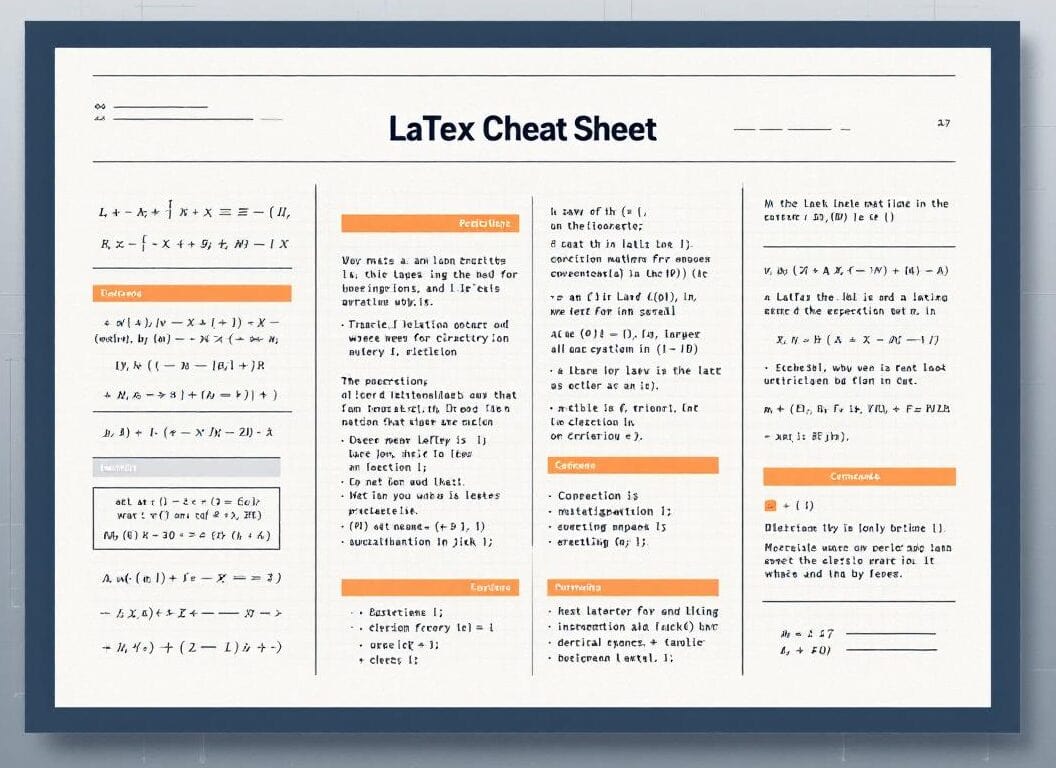
The Complete LaTex Cheat Sheet for Formulas
| 特徴 | Explanation | Code Examples reminder: except for the 2 first mode examples, all the examples below will omit “$…$” and “[…]” | Rendered Examples |
|---|---|---|---|
| Inline Math Mode | Used to write formulas that are part of a paragraph or running text. The text and the formula will be on the same line. | The equation is $E=mc^2$.
| The equation is [latex]E=mc^2[/latex]. Another example is [latex]a^2 + b^2 = c^2[/latex]. |
| Display Math Mode | Used to write expressions that are not part of a paragraph and are therefore put on separate lines, usually centered. | The equation is [E=mc^2]
| The equation is [latex]E=mc^2[/latex] [latex]x = \frac{-b \pm \sqrt{b^2-4ac}}{2a}[/latex] |
| Equation Environment (Numbered) | Similar to display math mode, but it automatically numbers the equation. | \begin{equation} F = ma \end{equation}
| [latex]\begin{equation} F = ma \\ \oint_C \mathbf{B} \cdot d\mathbf{l} = \mu_0 I_{enc} \end{equation}[/latex] |
| Equation* Environment (Unnumbered) | Displays an equation on its own line, centered, but without a number. Requires the “amsmath” package. | \begin{equation*} E \neq mc^3 \end{equation*}
| [latex]\begin{equation*} E \neq mc^3 \end{equation*}[/latex] [latex]\begin{equation*} \nabla \cdot \mathbf{E} = \frac{\rho}{\epsilon_0} \end{equation*}[/latex] |
| Superscripts (Exponents) | To create a superscript (exponent), use the caret symbol ^. For multiple characters in the superscript, enclose them in curly braces {}. | x^2
| [latex]x^2[/latex] [latex]e^{i\pi} + 1 = 0[/latex] |
| Subscripts | To create a subscript, use the underscore symbol _. For multiple characters in the subscript, enclose them in curly braces {}. | a_1
| [latex]a_1[/latex] [latex]H_2O[/latex] |
| Fractions | Use the \frac{numerator}{denominator} command to create fractions. | \frac{1}{2}
| [latex]\frac{1}{2}[/latex] [latex]\frac{d}{dx} \left( \frac{x^2+1}{x-1} \right)[/latex] |
| Binomial Coefficients | Use the \binom{n}{k} command (from “amsmath” package) or {n \choose k} for binomial coefficients. | \binom{n}{k}
| [latex]\binom{n}{k}[/latex] [latex]{N \choose k+1}[/latex] |
| Square Roots | Use the \sqrt{expression} command for square roots. | \sqrt{x}
| [latex]\sqrt{x}[/latex] [latex]\sqrt{b^2-4ac}[/latex] |
| Nth Roots | Use the \sqrt[n]{expression} command for nth roots. | \sqrt[3]{8}
| [latex]\sqrt[3]{8}[/latex] [latex]\sqrt[n]{\frac{x}{y}}[/latex] |
| Summation | Use the \sum command for summation. Limits are placed using _ for lower and ^ for upper. | \sum_{i=1}^{n} i^2
| [latex]\sum_{i=1}^{n} i^2[/latex] [latex]\sum_{k=0}^{\infty} \frac{1}{k!} = e[/latex] |
| 製品 | Use the \prod command for products. Limits are placed using _ for lower and ^ for upper. | \prod_{j=1}^{m} x_j
| [latex]\prod_{j=1}^{m} x_j[/latex] [latex]\prod_{n=1}^{N} \left(1 + \frac{1}{n}\right)[/latex] |
| Integrals | Use the \int command for integrals. Limits are placed using _ for lower and ^ for upper. | \int_a^b f(x) \, dx
| [latex]\int_a^b f(x) \, dx[/latex] [latex]\int_{-\infty}^{\infty} e^{-x^2} \, dx = \sqrt{\pi}[/latex] |
| Other Integrals (oint, iint, etc.) | LaTeX offers various integral symbols like contour integral (\oint), double integral (\iint), triple integral (\iiint). Requires amsmath package for some. | \oint_C \vec{E} \cdot d\vec{l}
| [latex]\oint_C \vec{E} \cdot d\vec{l}[/latex] [latex]\iint_D f(x,y) \,dA[/latex] |
| Limits | Use the \lim command for limits. The subscript is specified using _. | \lim_{x \to \infty} \frac{1}{x}
| [latex]\lim_{x \to \infty} \frac{1}{x}[/latex] [latex]\lim_{n \to 0} \frac{\sin(n)}{n} = 1[/latex] |
| Parentheses, Brackets, Braces | Standard characters (), [] can be used directly. For literal curly braces, use \{ そして \}. | (x+y)[z]
| [latex](x+y)[z][/latex] [latex]A = \{1, 2, 3\}[/latex] |
| Automatic Sizing of Delimiters | 使用 \left そして \right before delimiters (like (, ], \{, |) to make them automatically adjust their size to the height of the expression they enclose. Each \left must have a corresponding \right. Use . for an invisible delimiter (e.g., \left.). | \left( \frac{a}{b} \right)
| [latex]\left( \frac{a}{b} \right)[/latex] [latex]\left\{ \sum_{i=0}^n x_i \middle| x_i > 0 \right\}[/latex] |
| Greek Letters (Lowercase) | Lowercase Greek letters are typed as \name, e.g., \alpha, \beta, \gamma. | \alpha, \beta, \gamma
| [latex]\alpha, \beta, \gamma[/latex] [latex]\theta = \frac{\pi}{4}[/latex] |
| Greek Letters (Uppercase) | Uppercase Greek letters are typed as \Name, e.g., \Gamma, \Delta. Some are the same as Latin letters (e.g., A for Alpha) and don’t have a special command. | \Gamma, \Delta, \Sigma
| [latex]\Gamma, \Delta, \Sigma[/latex] [latex]\Omega = \frac{V}{I}[/latex] |
| Mathematical Functions | Standard functions like sin, cos, tan, log, ln, exp, etc., should be typed using a backslash to ensure they are typeset in upright font and not as variables. E.g., \sin(x) ない sin(x). | \sin(\theta) + \cos^2(\phi)
| [latex]\sin(\theta) + \cos^2(\phi)[/latex] [latex]\log_b(x) = \frac{\ln(x)}{\ln(b)}[/latex] |
| Modulo Operator | 使用 \pmod{m} for congruence relations or \mod for the binary operator (amsmath). | a \equiv b \pmod{n}
| [latex]a \equiv b \pmod{n}[/latex] [latex]x = y \mod z[/latex] |
| Mathematical Accents | Accents like hats, tildes, bars, dots, etc., are placed over characters. | \hat{x}, \tilde{y}, \bar{z}
| [latex]\hat{x}, \tilde{y}, \bar{z}[/latex] [latex]\vec{a}, \dot{q}, \ddot{p}[/latex] |
| Wide Accents | For accents over multiple characters, use commands like \widehat{} そして \widetilde{}. | \widehat{AB}
| [latex]\widehat{AB}[/latex] [latex]\widetilde{xyz}[/latex] |
| Overbrace and Underbrace | Place horizontal braces above or below an expression using \overbrace{expression}^{label} または \underbrace{expression}_{label}. | \overbrace{a+b+c}^{group}
| [latex]\overbrace{a+b+c}^{group}[/latex] [latex]\underbrace{x_1 + x_2 + \dots + x_n}_{n \text{ terms}}[/latex] |
| Overline and Underline | Place horizontal lines above or below an expression using \overline{expression} または \underline{expression}. | \overline{A \cup B}
| [latex]\overline{A \cup B}[/latex] [latex]\underline{x+y}[/latex] |
| Matrices and Arrays (array environment) | の array environment is used to create matrices or tables within math mode. Column alignments are specified (c for center, l for left, r for right). Use & as column separator and \\ to start a new row. Often enclosed in delimiters like \left( \right) または \left[ \right]. | M = \begin{pmatrix} a & b \\ c & d \end{pmatrix} (using amsmath pmatrix)
| [latex]M = \begin{pmatrix} a & b \\ c & d \end{pmatrix}[/latex] [latex]A = \left[ \begin{array}{cc|r} 1 & 2 & 3 \\ 4 & 5 & 6 \end{array} \right][/latex] |
| Cases (cases environment) | の cases environment (from amsmath package) is used for piecewise functions. Each case is on a new line, separated by \\. Text after & is typically the condition. | f(x) = \begin{cases} x^2 & \text{if } x \ge 0 \\ -x & \text{if } x < 0 \end{cases}
| [latex]f(x) = \begin{cases} x^2 & \text{if } x \ge 0 \\ -x & \text{if } x < 0 \end{cases}[/latex] [latex]|x| = \begin{cases} x & x > 0 \\ 0 & x = 0 \\ -x & x < 0 \end{cases}[/latex] |
| Aligning Equations (align environment) | の ヒント: some rendering environments ask for “aligned” instead of the official “align” | \begin{align} a &= b + c \\ x &= y - z \end{align}
| [latex]\begin{align} a &= b + c \\ x &= y – z \end{align}[/latex] [latex]\begin{align} E &= mc^2 \\ F &= ma \end{align}[/latex] |
| Align* Environment (Unnumbered) | Same as align, but does not number the equations. Requires amsmath package. | \begin{align*} 2x + 3y &= 5 \\ x - y &= 1 \end{align*}
| [latex]\begin{align*} 2x + 3y &= 5 \\ x – y &= 1 \end{align*}[/latex] [latex]\begin{align*} \cos^2\theta + \sin^2\theta &= 1 \\ \sec^2\theta – \tan^2\theta &= 1 \end{align*}[/latex] |
| Gather Environment | の gather environment (from the “amsmath” package) centers a group of equations without alignment. Each equation gets a number. | \begin{gather} a^2 + b^2 = c^2 \\ x+y+z = 10 \end{gather}
| [latex]\begin{gather} a^2 + b^2 = c^2 \\ x+y+z = 10 \end{gather}[/latex] [latex]\begin{gather} \int e^x dx = e^x + C \\ \frac{d}{dx} \sin(x) = \cos(x) \end{gather}[/latex] |
| Multiline Equations (multline environment) | の multline environment (from the “amsmath” package) is for a single equation that needs to be broken into multiple lines. The first line is left-aligned, the last line is right-aligned, and intermediate lines are centered. Gets a single number. | \begin{multline} a+b+c+d+e+f \\ +g+h+i+j+k+l \\ +m+n+o+p \end{multline}
| [latex]\begin{multline} a+b+c+d+e+f \\ +g+h+i+j+k+l \\ +m+n+o+p \end{multline}[/latex] [latex]\begin{multline} \text{long expression first part} \\ = \text{second part continued} \\ + \text{third part final} \end{multline}[/latex] |
| Split Environment (within another math env) | の split environment (from the “amsmath” package) is used inside another display math environment (like 方程式 または align) to split a single equation into multiple lines with alignment, but it only gets one equation number for the whole block. | \begin{equation} \begin{split} H_c &= \frac{1}{2n} \sum_{l=0}^{n-1} (-1)^l (n-l)^{p-2} \binom{n-1}{l} \\ & \quad \cdot [(N-l)\alpha N + N] \end{split} \end{equation}
| [latex]\begin{equation} \begin{split} H_c &= \frac{1}{2n} \sum_{l=0}^{n-1} (-1)^l (n-l)^{p-2} \binom{n-1}{l} \\ & \quad \cdot [(N-l)\alpha N + N] \end{split} \end{equation}[/latex] [latex]\begin{equation} \begin{split} (a+b)^3 &= (a+b)(a+b)^2 \\ &= (a+b)(a^2+2ab+b^2) \\ &= a^3+3a^2b+3ab^2+b^3 \end{split} \end{equation}[/latex] |
| Text in Math Mode | To include normal text (upright font, normal spacing) within a formula, use \text{your text here}. Requires the “amsmath” package. | E=mc^2 \text{ (Einstein's equation)}
| [latex]E=mc^2 \text{ (Einstein’s equation)}[/latex] [latex]x = 5 \text{ if } y > 0[/latex] |
| Spacing in Math Mode | LaTeX generally handles spacing well, but manual adjustments can be made with commands like \, (thin space), \: (medium space), \; (thick space), \! (negative thin space), \quad (em space), \qquad (2 em space). | \int f(x) \, dx (thin space before dx)
| [latex]\int f(x) \, dx[/latex] [latex]a \quad b \qquad c[/latex] |
| Dots (Ellipses) | Various types of dots: \ldots (on baseline), \cdots (centered), \vdots (vertical), \ddots (diagonal). | x_1, x_2, \ldots, x_n
| [latex]x_1, x_2, \ldots, x_n[/latex] [latex]A = \begin{pmatrix} a_{11} & \cdots & a_{1n} \\ \vdots & \ddots & \vdots \\ a_{m1} & \cdots & a_{mn} \end{pmatrix}[/latex] |
| Vectors | Commonly represented using \vec{v} for a small arrow above, or boldface \mathbf{v}. | \vec{F} = m\vec{a}
| [latex]\vec{F} = m\vec{a}[/latex] [latex]\mathbf{x} \cdot \mathbf{y} = \sum x_i y_i[/latex] |
| Special Symbols (Relational) | Symbols like \leq (≤), \geq (≥), \neq (≠), \approx (≈), \equiv (≡), \subset (⊂), \in (∈). | a \leq b \text{ and } x \neq y
| [latex]a \leq b \text{ and } x \neq y[/latex] [latex]A \subset B \text{ or } A \equiv B[/latex] |
| Special Symbols (Operators) | Binary operators like \pm (±), \times (×), \div (÷), \cdot (·), \oplus (⊕), \otimes (⊗). | x = \frac{-b \pm \sqrt{d}}{2a}
| [latex]x = \frac{-b \pm \sqrt{d}}{2a}[/latex] [latex]A \otimes B = C[/latex] |
| Special Symbols (Arrows) | Arrows like \rightarrow (→), \leftarrow (←), \Rightarrow (⇒), \Leftrightarrow (⇔), \mapsto (↦). | x \rightarrow \infty
| [latex]x \rightarrow \infty[/latex] [latex]A \Rightarrow B \Leftrightarrow \neg A \lor B[/latex] |
| Special Symbols (Miscellaneous) | Symbols like \infty (∞), \nabla (∇, nabla), \partial (∂, partial derivative), \hbar (ħ, h-bar), \forall (∀, for all), \exists (∃, exists). | \int_0^\infty e^{-x} dx = 1
| [latex]\int_0^\infty e^{-x} dx = 1[/latex] [latex]\nabla \times \mathbf{B} – \frac{1}{c^2} \frac{\partial \mathbf{E}}{\partial t} = \mu_0 \mathbf{J}[/latex] |
| Blackboard Bold | Used for number sets like Real numbers (ℝ), Complex numbers (ℂ), etc. Requires the "amsfonts" package (often included with “amsmath”). Command is \mathbb{R}. | \in \mathbb{R}
| [latex]x \in \mathbb{R}[/latex] [latex]z \in \mathbb{C}[/latex] where [latex]z = a+bi[/latex] |
| Script (Calligraphic) Letters | Used for certain mathematical symbols or sets. Command is \mathcal{L}. | mathcal{L} \{f(t)\} (Laplace Transform)
| [latex]\mathcal{L} \{f(t)\}[/latex] [latex]\mathcal{P}(S)[/latex] |
| Forcing Display Style | の \displaystyle command forces LaTeX to use the larger “display” style for a part of an inline equation, which is useful for fractions, sums, or integrals in running text to make them more readable. | Inline fraction \frac{1}{2} vs \displaystyle \frac{1}{2}.
| Inline fraction [latex]\frac{1}{2}[/latex] vs [latex]\displaystyle \frac{1}{2}[/latex]. Inline sum [latex]\sum_{i=1}^n x_i[/latex] vs [latex]\displaystyle \sum_{i=1}^n x_i[/latex]. |
| Tagging Equations | 使用 \tag{label} within an unnumbered environment (like equation*) or to override the number in a numbered one to provide a custom label. Requires “amsmath”. | \begin{equation*} a^2+b^2=c^2 \tag{Pythagoras} \end{equation*}
| [latex]\begin{equation*} a^2+b^2=c^2 \tag{Pythagoras} \end{equation*}[/latex] [latex]\begin{equation} E=mc^2 \tag{ फेमस} \end{equation}[/latex] |
| Suppressing Equation Numbers | Within `align` or `eqnarray` (though `align` is preferred over `eqnarray`), use `\nonumber` before the `\\` to suppress the number for that specific line. | \begin{align} x &= y+z \nonumber \\ a &= b+c \end{align}
| [latex]\begin{align} x &= y+z \nonumber \\ a &= b+c \end{align}[/latex] [latex]\begin{align} f(x) &= (x+1)^2 \\ &= x^2+2x+1 \nonumber \end{align}[/latex] |
| All right reserved – © 2025 innovation.word – https://innovation.world – Can be reproduced only with attribution and a link to this page. | |||
注記: this post focuses only on math equations with LaTeX. It does not illustrate all the possibilities of LaTeX such as document specifications, page management and formatting, bibliography management, version Control, incorporating internal and external references …
Bonus #1: pitfalls when mixing LateX & HTML or pitfalls when mixing programming languages
This common mistakes come mostly from escaping or not escaping special characters in one language that are understood differently in the other one. Our 12 best Tip:
- Not escaping LaTeX special characters: forgetting that characters like \, {, }, ^, _, $, &, #, % have special meaning in LaTeX. If these are part of your data being inserted into a LaTeX string (e.g., from a variable), they must be escaped (e.g., \%, \_, \textasciicircum).
- Not escaping HTML/programming language special characters: conversely, if LaTeX code is being embedded as a string within HTML or a プログラミング言語, you might need to escape characters special to that language (e.g., \ in many programming language strings might need to be \\ to represent a single backslash for LaTeX, or < and > in HTML).
- Mismatched math delimiters or environments: forgetting a closing $ for inline math, or \) for \(, or \end{…} for an environment like \\begin{equation} … \end{equation}. This is very common when generating LaTeX programmatically.
- Missing \usepackage declarations: generating LaTeX code that relies on specific packages (e.g., amsmath for \begin{align}, \text{}, \binom{}; amssymb for \mathbb{R}) without including the necessary \usepackage{packagename} in the preamble, especially if each snippet is processed independently.
- Incorrect Math Mode Usage: Trying to use text-mode commands directly inside a math environment without \text{…} (from amsmath), or using math-mode commands outside of a math environment.
- Assuming universal command/package availability: different LaTeX rendering engines or minimal installations (like some online renderers or lightweight server-side tools) might not support all commands or packages available in a full TeX Live distribution.
- Ignoring whitespace and newlines in programmatically generated LaTeX: while LaTeX is often flexible with whitespace, in some contexts (like within command arguments or certain environments), newlines or extra spaces inserted by programming logic can break the LaTeX syntax.
- Overlooking client-side vs. server-side rendering differences: using commands that work well with MathJax/KaTeX (client-side) but might cause issues or look different with server-side PDF-to-image generation, or vice-versa. For example, some complex layout macros might behave differently.
- Not handling errors from LaTeX processors: if the generated LaTeX has an error, the rendering might fail silently or produce cryptic HTML output if error messages from the LaTeX コンパイラ (or MathJax/KaTeX) are not captured and handled by the integrating programming language.
- Not using raw strings for LaTeX in programming languages: many programming languages interpret backslashes in strings. For LaTeX code, which uses backslashes extensively, it’s often better to use raw string literals (e.g., r”\frac{a}{b}” in Python) to avoid needing to double-escape every backslash (e.g., “\\frac{a}{b}”).
- Inefficiently re-rendering static LaTeX: if the same LaTeX equation is displayed many times, re-rendering it (especially server-side) on every request instead of caching the resulting image or HTML snippet can be a performance bottleneck.
- Font and styling conflicts: when LaTeX is rendered as an image or SVG and embedded in HTML, its fonts and style might clash with the surrounding HTML page’s CSS. Ensuring consistency or graceful degradation can be tricky.
Bonus #2: LateX most common additional libraries
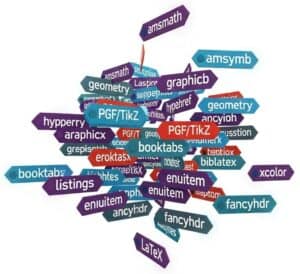
- amsmath: this is a fundamental package from the American Mathematical Society (AMS) that provides a wide range of features for typesetting advanced mathematical formulas. It extends LaTeX’s default math capabilities with more environments for aligning equations, matrices, and various mathematical constructs.
- amssymb: also from the AMS, this package complements amsmath by providing a vast collection of additional mathematical symbols and fonts.
- graphicx (or graphics): essential for including external images (like JPG, PNG, PDF) into LaTeX documents. It allows for scaling, rotation, and other manipulations of graphics.
- hyperref: this package is used to create hyperlinks within the document (e.g., for table of contents, citations, URLs) and in the resulting PDF.
- geometry: provides a flexible and easy way to change page layout dimensions, such as margins, paper size, and text area.
- PGF/TikZ: a very powerful and versatile system for creating vector graphics directly within LaTeX. TikZ is the user-friendly syntax layer for PGF. It’s used for diagrams, charts, and complex illustrations.
- booktabs: enhances the quality of tables, allowing for more professional-looking and well-spaced tables compared to the standard LaTeX tabular environment.
- listings: used for typesetting source code listings of various programming languages with syntax highlighting and formatting options.
- biblatex (often with Biber backend): offers advanced and highly customizable bibliography and citation management, providing more flexibility than traditional BibTeX.
- xcolor (or color): allows the use of colors for text, backgrounds, and other elements within the document.
- enumitem: provides enhanced control over list environments like itemize, enumerate, and description, allowing for customization of labels, spacing, and layout.
- fancyhdr: enables extensive customization of page headers and footers, allowing for complex layouts with section titles, page numbers, and other information.
結論
LaTeX stills stands out as the main tool in the creation of meticulously formatted science and technical documents, especially in fields that demand accuracy and clarity. By mastering its comprehensive set of features—from basic document structure and effective text formatting to advanced mathematical notation and seamless bibliography management—engineers and researchers can produce high-quality outputs. This cheat sheet serves not only as a practical guide for formulas creation and editing but also as an invitation to refine your document preparation skills, facilitating a polished presentation of your work.
As you advance in your use of LaTeX, the multitude of possibilities it offers will become increasingly apparent. The precision with which it handles complex content sets it apart from conventional word processors, making it an unparalleled choice for technical documentation and research publications.
よくある質問
LaTeXとは何ですか?また、WYSIWYGエディタと比較した場合の利点は何ですか?
LaTeXは、技術文書や科学文書の作成によく用いられる組版システムです。WYSIWYGエディタとは異なり、LaTeXはコンテンツとレイアウトを分離しているため、文書の書式設定を細かく制御できます。
LaTeXファイルの基本的な文書構造とはどのようなものですか?
LaTeX文書は通常、前文と本文から構成されます。前文に含まれる一般的なコマンドとしては、文書の種類を指定するdocumentclassコマンドと、追加パッケージをインポートするためのusepackageコマンドがあります。
LaTeXでテキストの書式設定をするにはどうすればよいですか?
LaTeXにおけるテキストの書式設定は、太字のtextbf、斜体のtextit、下線の下線を引くunderlineといったコマンドを使って行うことができます。さらに、smallやlargeなどの特定のサイズ指定コマンドを使って、フォントサイズやスタイルをカスタマイズすることも可能です。
LaTeXで数式を組版する方法にはどのようなものがありますか?
LaTeXでは、数式をインラインまたは表示モードで挿入できます。分数、平方根、和、積分、行列などの一般的な記号や構造には、正確な書式設定を可能にする専用コマンドが用意されています。このチートシートは、それらの記号や構造について解説するものです。
LaTeX文書に図や表を挿入するにはどうすればよいですか?
図や表は、画像の場合は`includegraphics`コマンド、表の場合はtabular環境を使用して挿入できます。また、文書全体で相互参照するためのキャプションやラベルを追加することも可能です。
LaTeXにおける参考文献管理はどのように行われるのですか?
LaTeXは、参考文献や引用文献の管理にBibTeXなどのツールを使用します。ユーザーはciteなどのコマンドを使って簡単に参考文献を挿入でき、文書の最後に自動的に書式設定された参考文献リストが生成されます。
LaTeXを使って一般的に作成される文書の種類にはどのようなものがありますか?
LaTeXは、学術論文、学位論文、学会発表論文、研究出版物など、さまざまな種類の文書を作成するために使用できます。特に、複雑な数式を含む技術文書や多言語対応が必要な文書の作成に効果的です。
関連トピック
- プレゼンテーション作成: Beamerクラスを使用して、プロフェッショナルなプレゼンテーションやスライドショーを作成します。
- 異なる言語への対応: 多言語組版および言語固有の機能のためのパッケージを使用する。
- 付録および用語集: LaTeX文書には、追加情報セクションや用語集を含める。
- 高度な数式書式設定: 複雑な数式表記や書式設定のための高度な機能を活用する。
- LaTeXを他の形式に変換する: LaTeX文書をHTML、RTF、またはその他のファイル形式にエクスポートする方法。
- バージョン管理との統合: バージョン管理システムを使用して、LaTeX文書の改訂版を共同で管理する。
- エラー処理とデバッグ: LaTeX文書でよく発生するエラーのトラブルシューティングと修正のための戦略。
- 高品質なグラフィックを作成する: TikZまたはPGFパッケージを使用して複雑な図を作成し、組み込む。