공학 및 학계에서 고품질 문서 작성의 중요성은 아무리 강조해도 지나치지 않습니다. 정확성과 유연성으로 정평이 난 LaTeX 조판 시스템은 기술 문서의 품질을 향상시켜 학자와 전문가 모두에게 선호되는 선택지가 되었습니다. Overleaf와 ACM이 2019년에 실시한 설문조사에 따르면, 컴퓨터 과학 및 수학과 같은 분야의 연구자 중 80% 이상이 복잡한 문서, 특히 복잡한 수학적 내용을 포함하는 문서를 처리하는 데 탁월한 LaTeX를 사용하고 있는 것으로 나타났습니다. 이 글은 LaTeX 언어의 완벽한 요약본과 수식 작성에 관한 자세한 예제를 제공합니다.
핵심 요약
- LaTeX는 콘텐츠와 레이아웃을 효과적으로 분리합니다.
- 구조는 서문과 본문으로 구성됩니다.
- 수학 기호가 텍스트와 깔끔하게 통합됩니다.
- 그림과 표를 쉽게 참조할 수 있습니다.
- BibTeX와 같은 다른 라이브러리는 인용 관리를 놀라울 정도로 간소화합니다.
Whether you’re crafting a thesis, a technical report, or a journal article, mastering LaTeX can significantly streamline your publication process and elevate your work in both academic and industry settings.
LaTeX는 본질적으로 고급 문서 작성 시스템이자 마크업 언어로, 특히 복잡한 수학 공식과 과학 표기법을 포함하는 전문적인 조판 문서를 제작하는 능력으로 유명합니다. 원래 1980년대 초 레슬리 램포트가 도널드 너스가 개발한 TeX 조판 프로그램을 사용자 친화적으로 개선하기 위해 작성했습니다.
LaTeX 소개 및 WYSIWYG 편집기 대비 장점

LaTeX는 복잡한 문서 작성, 특히 과학 및 기술 분야에서 여러 가지 장점을 제공하는 조판 시스템입니다. 가장 큰 장점 중 하나는 일반적인 WYSIWYG 편집기가 종종 어려움을 겪는 복잡한 레이아웃 및 서식 작업을 원활하게 처리할 수 있다는 점입니다. 예를 들어, LaTeX는 참고문헌, 인용 및 참조를 강력하게 처리하기 때문에 정확성과 정밀성이 매우 중요한 연구 분야 전문가들에게 최적의 선택입니다.
또 다른 주목할 만한 장점은 LaTeX로 작성된 문서의 뛰어난 출력 품질입니다. 이 시스템은 인쇄술의 모범 사례를 따르므로 최종 문서가 미적으로 아름다울 뿐만 아니라 높은 출판 기준을 충족합니다.
LaTeX의 버전 관리 기능은 기존 편집기와 차별화되는 중요한 요소입니다. 여러 작성자가 Git과 같은 소프트웨어 도구를 사용하여 텍스트 파일을 통해 협업할 수 있으며, 이러한 도구는 변경 사항을 효과적으로 추적합니다. 텍스트만 수정하고 서식은 그대로 유지하기 때문에 기존 편집기보다 충돌 해결 효율이 훨씬 높습니다. 특히 대규모 프로젝트를 진행하는 팀에게 이러한 접근 방식은 협업을 크게 향상시켜 줍니다.
마지막으로, LaTeX의 유연성 덕분에 사용자는 사용자 지정 스타일과 명령을 만들 수 있어 다양한 문서 작성 요구 사항에 맞춰 활용할 수 있습니다. 학술 논문이든 비즈니스 보고서든, 사용자는 서식 규칙을 직접 정의할 수 있습니다. 이러한 사용자 지정 기능은 WYSIWYG 편집기에서는 흔히 볼 수 없는 장점입니다.
팁: TikZ와 같은 패키지를 활용하여 문서 내에 복잡한 다이어그램을 생성하고 시각적 명확성을 높이는 동시에 LaTeX의 기능을 활용하세요(자세한 내용은 당사 웹사이트를 참조하세요). 보너스 #2 아래에 더 많은 라이브러리가 있습니다.
LaTeX의 기본 문서 구조
LaTeX 문서는 전체적인 레이아웃과 서식을 정의하는 문서 클래스 선언으로 시작합니다. 일반적으로 사용되는 클래스에는 다음과 같은 것들이 있습니다. 기사, 보고서, 그리고 책이것은 다음 명령으로 시작됩니다. documentclass{article}일반적인 LaTeX 문서에는 향상된 기능을 위한 패키지가 포함된 서문이 있습니다. usepackage{amsmath} 수학을 위해서 그리고 usepackage{graphicx} 이미지 처리를 위한 것입니다. 구조는 다음과 같습니다. 시작{문서} 명령은 콘텐츠가 시작되는 위치를 나타내고 끝납니다. end{document}.
팁: 사용하세요 레이블{키} 명령 바로 다음에 부분 상호 참조를 생성하는 명령입니다. 이를 통해 문서 전체에 걸쳐 자동 번호 매기기 및 정확한 참조 업데이트가 가능해져 워크플로 효율성이 향상됩니다. 예를 들어, 방정식이나 섹션에 레이블을 생성한 다음 해당 레이블을 사용하여 참조할 수 있습니다. 참조{key}일관성을 보장합니다.
팁: 대규모 문서에서 일관된 서식을 유지하려면 LaTeX에서 제공하는 미리 정의된 스타일이나 템플릿을 활용하는 것이 좋습니다.
수학적 표현 및 방정식 서식
LaTeX provides extensive capabilities for rendering mathematical expressions and equations, allowing users to format them with precision. The language supports two main environments for displaying math, “inline” and “display”:
- “Inline math”에 둘러싸여 있음 $…$LaTeX가 단락 내에서 사용될 때
- “Display math”에 둘러싸여 있음 […]가독성을 높이기 위해 방정식을 별도의 줄 중앙에 배치합니다.
예를 들어, 다음과 같은 인라인 표현식 $E = mc^2$ [latex]E = mc^2[/latex]로 렌더링되며 표시 버전은 [E = mc^2] will render as :
[latex]E = mc^2[/latex]
where the latter is rendered more prominently.
꿀팁: 표기법을 접할 수도 있습니다. $ $…$ $ (양쪽에 $ 기호가 두 개씩 붙어 있습니다) 대신에 […]미국수학회(AMS)가 이를 만류했음에도 불구하고.
IMPORTANT: for clarity, from now on, all the examples below will omit the “$…$” (inline mode) and “[…]” (display mode), to focus on the exact LaTeX feature.
Formatting of mathematical symbols is straightforward in LaTeX. Users can create fractions, roots, and subscripts with ease:
| Format Type | Command |
|---|---|
| Fractions | \frac{a}{b} will render as: [latex]\frac{a}{b}[/latex] |
| Square Roots | \sqrt{x} will render as [latex]\sqrt{x}[/latex] |
| Subscript | x_i will render as [latex]x_i[/latex] |
Within LaTeX, one can manipulate mathematical spacing and alignment. For instance, the commands , (thin space), : (medium space), and ; (thick space) allow for adjustments between operators or symbols. When presenting data, items can also be arranged in tables.
To enhance mathematical formatting, LaTeX supports environments for alignment. The “align” environment allows multiple equations to be aligned at the equal sign, a feature particularly beneficial in formal presentations. By incorporating tags such as begin{align}…end{align}, one can align equations neatly. Using LaTeX not only enhances the appearance of mathematical content but also maintains consistency across various documents.
The Complete LaTex Cheat Sheet for Formulas
| 특징 | Explanation | Code Examples reminder: except for the 2 first mode examples, all the examples below will omit “$…$” and “[…]” | Rendered Examples |
|---|---|---|---|
| Inline Math Mode | Used to write formulas that are part of a paragraph or running text. The text and the formula will be on the same line. | The equation is $E=mc^2$.
| The equation is [latex]E=mc^2[/latex]. Another example is [latex]a^2 + b^2 = c^2[/latex]. |
| Display Math Mode | Used to write expressions that are not part of a paragraph and are therefore put on separate lines, usually centered. | The equation is [E=mc^2]
| The equation is [latex]E=mc^2[/latex] [latex]x = \frac{-b \pm \sqrt{b^2-4ac}}{2a}[/latex] |
| Equation Environment (Numbered) | Similar to display math mode, but it automatically numbers the equation. | \begin{equation} F = ma \end{equation}
| [latex]\begin{equation} F = ma \\ \oint_C \mathbf{B} \cdot d\mathbf{l} = \mu_0 I_{enc} \end{equation}[/latex] |
| Equation* Environment (Unnumbered) | Displays an equation on its own line, centered, but without a number. Requires the “amsmath” package. | \begin{equation*} E \neq mc^3 \end{equation*}
| [latex]\begin{equation*} E \neq mc^3 \end{equation*}[/latex] [latex]\begin{equation*} \nabla \cdot \mathbf{E} = \frac{\rho}{\epsilon_0} \end{equation*}[/latex] |
| Superscripts (Exponents) | To create a superscript (exponent), use the caret symbol ^. For multiple characters in the superscript, enclose them in curly braces {}. | x^2
| [latex]x^2[/latex] [latex]e^{i\pi} + 1 = 0[/latex] |
| Subscripts | To create a subscript, use the underscore symbol _. For multiple characters in the subscript, enclose them in curly braces {}. | a_1
| [latex]a_1[/latex] [latex]H_2O[/latex] |
| Fractions | Use the \frac{numerator}{denominator} command to create fractions. | \frac{1}{2}
| [latex]\frac{1}{2}[/latex] [latex]\frac{d}{dx} \left( \frac{x^2+1}{x-1} \right)[/latex] |
| Binomial Coefficients | Use the \binom{n}{k} command (from “amsmath” package) or {n \choose k} for binomial coefficients. | \binom{n}{k}
| [latex]\binom{n}{k}[/latex] [latex]{N \choose k+1}[/latex] |
| Square Roots | Use the \sqrt{expression} command for square roots. | \sqrt{x}
| [latex]\sqrt{x}[/latex] [latex]\sqrt{b^2-4ac}[/latex] |
| Nth Roots | Use the \sqrt[n]{expression} command for nth roots. | \sqrt[3]{8}
| [latex]\sqrt[3]{8}[/latex] [latex]\sqrt[n]{\frac{x}{y}}[/latex] |
| Summation | Use the \sum command for summation. Limits are placed using _ for lower and ^ for upper. | \sum_{i=1}^{n} i^2
| [latex]\sum_{i=1}^{n} i^2[/latex] [latex]\sum_{k=0}^{\infty} \frac{1}{k!} = e[/latex] |
| Product | Use the \prod command for products. Limits are placed using _ for lower and ^ for upper. | \prod_{j=1}^{m} x_j
| [latex]\prod_{j=1}^{m} x_j[/latex] [latex]\prod_{n=1}^{N} \left(1 + \frac{1}{n}\right)[/latex] |
| Integrals | Use the \int command for integrals. Limits are placed using _ for lower and ^ for upper. | \int_a^b f(x) \, dx
| [latex]\int_a^b f(x) \, dx[/latex] [latex]\int_{-\infty}^{\infty} e^{-x^2} \, dx = \sqrt{\pi}[/latex] |
| Other Integrals (oint, iint, etc.) | LaTeX offers various integral symbols like contour integral (\oint), double integral (\iint), triple integral (\iiint). Requires amsmath package for some. | \oint_C \vec{E} \cdot d\vec{l}
| [latex]\oint_C \vec{E} \cdot d\vec{l}[/latex] [latex]\iint_D f(x,y) \,dA[/latex] |
| Limits | Use the \lim command for limits. The subscript is specified using _. | \lim_{x \to \infty} \frac{1}{x}
| [latex]\lim_{x \to \infty} \frac{1}{x}[/latex] [latex]\lim_{n \to 0} \frac{\sin(n)}{n} = 1[/latex] |
| Parentheses, Brackets, Braces | Standard characters (), [] can be used directly. For literal curly braces, use \{ 그리고 \}. | (x+y)[z]
| [latex](x+y)[z][/latex] [latex]A = \{1, 2, 3\}[/latex] |
| Automatic Sizing of Delimiters | 사용 \left 그리고 \right before delimiters (like (, ], \{, |) to make them automatically adjust their size to the height of the expression they enclose. Each \left must have a corresponding \right. Use . for an invisible delimiter (e.g., \left.). | \left( \frac{a}{b} \right)
| [latex]\left( \frac{a}{b} \right)[/latex] [latex]\left\{ \sum_{i=0}^n x_i \middle| x_i > 0 \right\}[/latex] |
| Greek Letters (Lowercase) | Lowercase Greek letters are typed as \name, e.g., \alpha, \beta, \gamma. | \alpha, \beta, \gamma
| [latex]\alpha, \beta, \gamma[/latex] [latex]\theta = \frac{\pi}{4}[/latex] |
| Greek Letters (Uppercase) | Uppercase Greek letters are typed as \Name, e.g., \Gamma, \Delta. Some are the same as Latin letters (e.g., A for Alpha) and don’t have a special command. | \Gamma, \Delta, \Sigma
| [latex]\Gamma, \Delta, \Sigma[/latex] [latex]\Omega = \frac{V}{I}[/latex] |
| Mathematical Functions | Standard functions like sin, cos, tan, log, ln, exp, etc., should be typed using a backslash to ensure they are typeset in upright font and not as variables. E.g., \sin(x) ~ 아니다 sin(x). | \sin(\theta) + \cos^2(\phi)
| [latex]\sin(\theta) + \cos^2(\phi)[/latex] [latex]\log_b(x) = \frac{\ln(x)}{\ln(b)}[/latex] |
| Modulo Operator | 사용 \pmod{m} for congruence relations or \mod for the binary operator (amsmath). | a \equiv b \pmod{n}
| [latex]a \equiv b \pmod{n}[/latex] [latex]x = y \mod z[/latex] |
| Mathematical Accents | Accents like hats, tildes, bars, dots, etc., are placed over characters. | \hat{x}, \tilde{y}, \bar{z}
| [latex]\hat{x}, \tilde{y}, \bar{z}[/latex] [latex]\vec{a}, \dot{q}, \ddot{p}[/latex] |
| Wide Accents | For accents over multiple characters, use commands like \widehat{} 그리고 \widetilde{}. | \widehat{AB}
| [latex]\widehat{AB}[/latex] [latex]\widetilde{xyz}[/latex] |
| Overbrace and Underbrace | Place horizontal braces above or below an expression using \overbrace{expression}^{label} 또는 \underbrace{expression}_{label}. | \overbrace{a+b+c}^{group}
| [latex]\overbrace{a+b+c}^{group}[/latex] [latex]\underbrace{x_1 + x_2 + \dots + x_n}_{n \text{ terms}}[/latex] |
| Overline and Underline | Place horizontal lines above or below an expression using \overline{expression} 또는 \underline{expression}. | \overline{A \cup B}
| [latex]\overline{A \cup B}[/latex] [latex]\underline{x+y}[/latex] |
| Matrices and Arrays (array environment) | 그만큼 array environment is used to create matrices or tables within math mode. Column alignments are specified (c for center, l for left, r for right). Use & as column separator and \\ to start a new row. Often enclosed in delimiters like \left( \right) 또는 \left[ \right]. | M = \begin{pmatrix} a & b \\ c & d \end{pmatrix} (using amsmath pmatrix)
| [latex]M = \begin{pmatrix} a & b \\ c & d \end{pmatrix}[/latex] [latex]A = \left[ \begin{array}{cc|r} 1 & 2 & 3 \\ 4 & 5 & 6 \end{array} \right][/latex] |
| Cases (cases environment) | 그만큼 cases environment (from amsmath package) is used for piecewise functions. Each case is on a new line, separated by \\. Text after & is typically the condition. | f(x) = \begin{cases} x^2 & \text{if } x \ge 0 \\ -x & \text{if } x < 0 \end{cases}
| [latex]f(x) = \begin{cases} x^2 & \text{if } x \ge 0 \\ -x & \text{if } x < 0 \end{cases}[/latex] [latex]|x| = \begin{cases} x & x > 0 \\ 0 & x = 0 \\ -x & x < 0 \end{cases}[/latex] |
| Aligning Equations (align environment) | 그만큼 팁: some rendering environments ask for “aligned” instead of the official “align” | \begin{align} a &= b + c \\ x &= y - z \end{align}
| [latex]\begin{align} a &= b + c \\ x &= y – z \end{align}[/latex] [latex]\begin{align} E &= mc^2 \\ F &= ma \end{align}[/latex] |
| Align* Environment (Unnumbered) | Same as align, but does not number the equations. Requires amsmath package. | \begin{align*} 2x + 3y &= 5 \\ x - y &= 1 \end{align*}
| [latex]\begin{align*} 2x + 3y &= 5 \\ x – y &= 1 \end{align*}[/latex] [latex]\begin{align*} \cos^2\theta + \sin^2\theta &= 1 \\ \sec^2\theta – \tan^2\theta &= 1 \end{align*}[/latex] |
| Gather Environment | 그만큼 gather environment (from the “amsmath” package) centers a group of equations without alignment. Each equation gets a number. | \begin{gather} a^2 + b^2 = c^2 \\ x+y+z = 10 \end{gather}
| [latex]\begin{gather} a^2 + b^2 = c^2 \\ x+y+z = 10 \end{gather}[/latex] [latex]\begin{gather} \int e^x dx = e^x + C \\ \frac{d}{dx} \sin(x) = \cos(x) \end{gather}[/latex] |
| Multiline Equations (multline environment) | 그만큼 multline environment (from the “amsmath” package) is for a single equation that needs to be broken into multiple lines. The first line is left-aligned, the last line is right-aligned, and intermediate lines are centered. Gets a single number. | \begin{multline} a+b+c+d+e+f \\ +g+h+i+j+k+l \\ +m+n+o+p \end{multline}
| [latex]\begin{multline} a+b+c+d+e+f \\ +g+h+i+j+k+l \\ +m+n+o+p \end{multline}[/latex] [latex]\begin{multline} \text{long expression first part} \\ = \text{second part continued} \\ + \text{third part final} \end{multline}[/latex] |
| Split Environment (within another math env) | 그만큼 split environment (from the “amsmath” package) is used inside another display math environment (like 방정식 또는 align) to split a single equation into multiple lines with alignment, but it only gets one equation number for the whole block. | \begin{equation} \begin{split} H_c &= \frac{1}{2n} \sum_{l=0}^{n-1} (-1)^l (n-l)^{p-2} \binom{n-1}{l} \\ & \quad \cdot [(N-l)\alpha N + N] \end{split} \end{equation}
| [latex]\begin{equation} \begin{split} H_c &= \frac{1}{2n} \sum_{l=0}^{n-1} (-1)^l (n-l)^{p-2} \binom{n-1}{l} \\ & \quad \cdot [(N-l)\alpha N + N] \end{split} \end{equation}[/latex] [latex]\begin{equation} \begin{split} (a+b)^3 &= (a+b)(a+b)^2 \\ &= (a+b)(a^2+2ab+b^2) \\ &= a^3+3a^2b+3ab^2+b^3 \end{split} \end{equation}[/latex] |
| Text in Math Mode | To include normal text (upright font, normal spacing) within a formula, use \text{your text here}. Requires the “amsmath” package. | E=mc^2 \text{ (Einstein's equation)}
| [latex]E=mc^2 \text{ (Einstein’s equation)}[/latex] [latex]x = 5 \text{ if } y > 0[/latex] |
| Spacing in Math Mode | LaTeX generally handles spacing well, but manual adjustments can be made with commands like \, (thin space), \: (medium space), \; (thick space), \! (negative thin space), \quad (em space), \qquad (2 em space). | \int f(x) \, dx (thin space before dx)
| [latex]\int f(x) \, dx[/latex] [latex]a \quad b \qquad c[/latex] |
| Dots (Ellipses) | Various types of dots: \ldots (on baseline), \cdots (centered), \vdots (vertical), \ddots (diagonal). | x_1, x_2, \ldots, x_n
| [latex]x_1, x_2, \ldots, x_n[/latex] [latex]A = \begin{pmatrix} a_{11} & \cdots & a_{1n} \\ \vdots & \ddots & \vdots \\ a_{m1} & \cdots & a_{mn} \end{pmatrix}[/latex] |
| Vectors | Commonly represented using \vec{v} for a small arrow above, or boldface \mathbf{v}. | \vec{F} = m\vec{a}
| [latex]\vec{F} = m\vec{a}[/latex] [latex]\mathbf{x} \cdot \mathbf{y} = \sum x_i y_i[/latex] |
| Special Symbols (Relational) | Symbols like \leq (≤), \geq (≥), \neq (≠), \approx (≈), \equiv (≡), \subset (⊂), \in (∈). | a \leq b \text{ and } x \neq y
| [latex]a \leq b \text{ and } x \neq y[/latex] [latex]A \subset B \text{ or } A \equiv B[/latex] |
| Special Symbols (Operators) | Binary operators like \pm (±), \times (×), \div (÷), \cdot (·), \oplus (⊕), \otimes (⊗). | x = \frac{-b \pm \sqrt{d}}{2a}
| [latex]x = \frac{-b \pm \sqrt{d}}{2a}[/latex] [latex]A \otimes B = C[/latex] |
| Special Symbols (Arrows) | Arrows like \rightarrow (→), \leftarrow (←), \Rightarrow (⇒), \Leftrightarrow (⇔), \mapsto (↦). | x \rightarrow \infty
| [latex]x \rightarrow \infty[/latex] [latex]A \Rightarrow B \Leftrightarrow \neg A \lor B[/latex] |
| Special Symbols (Miscellaneous) | Symbols like \infty (∞), \nabla (∇, nabla), \partial (∂, partial derivative), \hbar (ħ, h-bar), \forall (∀, for all), \exists (∃, exists). | \int_0^\infty e^{-x} dx = 1
| [latex]\int_0^\infty e^{-x} dx = 1[/latex] [latex]\nabla \times \mathbf{B} – \frac{1}{c^2} \frac{\partial \mathbf{E}}{\partial t} = \mu_0 \mathbf{J}[/latex] |
| Blackboard Bold | Used for number sets like Real numbers (ℝ), Complex numbers (ℂ), etc. Requires the "amsfonts" package (often included with “amsmath”). Command is \mathbb{R}. | \in \mathbb{R}
| [latex]x \in \mathbb{R}[/latex] [latex]z \in \mathbb{C}[/latex] where [latex]z = a+bi[/latex] |
| Script (Calligraphic) Letters | Used for certain mathematical symbols or sets. Command is \mathcal{L}. | mathcal{L} \{f(t)\} (Laplace Transform)
| [latex]\mathcal{L} \{f(t)\}[/latex] [latex]\mathcal{P}(S)[/latex] |
| Forcing Display Style | 그만큼 \displaystyle command forces LaTeX to use the larger “display” style for a part of an inline equation, which is useful for fractions, sums, or integrals in running text to make them more readable. | Inline fraction \frac{1}{2} vs \displaystyle \frac{1}{2}.
| Inline fraction [latex]\frac{1}{2}[/latex] vs [latex]\displaystyle \frac{1}{2}[/latex]. Inline sum [latex]\sum_{i=1}^n x_i[/latex] vs [latex]\displaystyle \sum_{i=1}^n x_i[/latex]. |
| Tagging Equations | 사용 \tag{label} within an unnumbered environment (like equation*) or to override the number in a numbered one to provide a custom label. Requires “amsmath”. | \begin{equation*} a^2+b^2=c^2 \tag{Pythagoras} \end{equation*}
| [latex]\begin{equation*} a^2+b^2=c^2 \tag{Pythagoras} \end{equation*}[/latex] [latex]\begin{equation} E=mc^2 \tag{ फेमस} \end{equation}[/latex] |
| Suppressing Equation Numbers | Within `align` or `eqnarray` (though `align` is preferred over `eqnarray`), use `\nonumber` before the `\\` to suppress the number for that specific line. | \begin{align} x &= y+z \nonumber \\ a &= b+c \end{align}
| [latex]\begin{align} x &= y+z \nonumber \\ a &= b+c \end{align}[/latex] [latex]\begin{align} f(x) &= (x+1)^2 \\ &= x^2+2x+1 \nonumber \end{align}[/latex] |
| All right reserved – © 2025 innovation.word – https://innovation.world – Can be reproduced only with attribution and a link to this page. | |||
메모: this post focuses only on math equations with LaTeX. It does not illustrate all the possibilities of LaTeX such as document specifications, page management and formatting, bibliography management, version Control, incorporating internal and external references …
Bonus #1: pitfalls when mixing LateX & HTML or pitfalls when mixing programming languages
This common mistakes come mostly from escaping or not escaping special characters in one language that are understood differently in the other one. Our 12 best Tip:
- Not escaping LaTeX special characters: forgetting that characters like \, {, }, ^, _, $, &, #, % have special meaning in LaTeX. If these are part of your data being inserted into a LaTeX string (e.g., from a variable), they must be escaped (e.g., \%, \_, \textasciicircum).
- Not escaping HTML/programming language special characters: conversely, if LaTeX code is being embedded as a string within HTML or a 프로그래밍 언어, you might need to escape characters special to that language (e.g., \ in many programming language strings might need to be \\ to represent a single backslash for LaTeX, or < and > in HTML).
- Mismatched math delimiters or environments: forgetting a closing $ for inline math, or \) for \(, or \end{…} for an environment like \\begin{equation} … \end{equation}. This is very common when generating LaTeX programmatically.
- Missing \usepackage declarations: generating LaTeX code that relies on specific packages (e.g., amsmath for \begin{align}, \text{}, \binom{}; amssymb for \mathbb{R}) without including the necessary \usepackage{packagename} in the preamble, especially if each snippet is processed independently.
- Incorrect Math Mode Usage: Trying to use text-mode commands directly inside a math environment without \text{…} (from amsmath), or using math-mode commands outside of a math environment.
- Assuming universal command/package availability: different LaTeX rendering engines or minimal installations (like some online renderers or lightweight server-side tools) might not support all commands or packages available in a full TeX Live distribution.
- Ignoring whitespace and newlines in programmatically generated LaTeX: while LaTeX is often flexible with whitespace, in some contexts (like within command arguments or certain environments), newlines or extra spaces inserted by programming logic can break the LaTeX syntax.
- Overlooking client-side vs. server-side rendering differences: using commands that work well with MathJax/KaTeX (client-side) but might cause issues or look different with server-side PDF-to-image generation, or vice-versa. For example, some complex layout macros might behave differently.
- Not handling errors from LaTeX processors: if the generated LaTeX has an error, the rendering might fail silently or produce cryptic HTML output if error messages from the LaTeX 컴파일러 (or MathJax/KaTeX) are not captured and handled by the integrating programming language.
- Not using raw strings for LaTeX in programming languages: many programming languages interpret backslashes in strings. For LaTeX code, which uses backslashes extensively, it’s often better to use raw string literals (e.g., r”\frac{a}{b}” in Python) to avoid needing to double-escape every backslash (e.g., “\\frac{a}{b}”).
- Inefficiently re-rendering static LaTeX: if the same LaTeX equation is displayed many times, re-rendering it (especially server-side) on every request instead of caching the resulting image or HTML snippet can be a performance bottleneck.
- Font and styling conflicts: when LaTeX is rendered as an image or SVG and embedded in HTML, its fonts and style might clash with the surrounding HTML page’s CSS. Ensuring consistency or graceful degradation can be tricky.
Bonus #2: LateX most common additional libraries
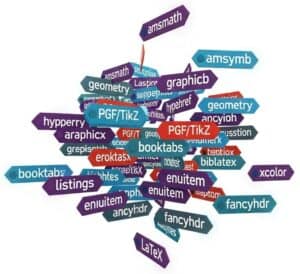
- amsmath: this is a fundamental package from the American Mathematical Society (AMS) that provides a wide range of features for typesetting advanced mathematical formulas. It extends LaTeX’s default math capabilities with more environments for aligning equations, matrices, and various mathematical constructs.
- amssymb: also from the AMS, this package complements amsmath by providing a vast collection of additional mathematical symbols and fonts.
- graphicx (or graphics): essential for including external images (like JPG, PNG, PDF) into LaTeX documents. It allows for scaling, rotation, and other manipulations of graphics.
- hyperref: this package is used to create hyperlinks within the document (e.g., for table of contents, citations, URLs) and in the resulting PDF.
- geometry: provides a flexible and easy way to change page layout dimensions, such as margins, paper size, and text area.
- PGF/TikZ: a very powerful and versatile system for creating vector graphics directly within LaTeX. TikZ is the user-friendly syntax layer for PGF. It’s used for diagrams, charts, and complex illustrations.
- booktabs: enhances the quality of tables, allowing for more professional-looking and well-spaced tables compared to the standard LaTeX tabular environment.
- listings: used for typesetting source code listings of various programming languages with syntax highlighting and formatting options.
- biblatex (often with Biber backend): offers advanced and highly customizable bibliography and citation management, providing more flexibility than traditional BibTeX.
- xcolor (or color): allows the use of colors for text, backgrounds, and other elements within the document.
- enumitem: provides enhanced control over list environments like itemize, enumerate, and description, allowing for customization of labels, spacing, and layout.
- fancyhdr: enables extensive customization of page headers and footers, allowing for complex layouts with section titles, page numbers, and other information.
결론
LaTeX stills stands out as the main tool in the creation of meticulously formatted science and technical documents, especially in fields that demand accuracy and clarity. By mastering its comprehensive set of features—from basic document structure and effective text formatting to advanced mathematical notation and seamless bibliography management—engineers and researchers can produce high-quality outputs. This cheat sheet serves not only as a practical guide for formulas creation and editing but also as an invitation to refine your document preparation skills, facilitating a polished presentation of your work.
As you advance in your use of LaTeX, the multitude of possibilities it offers will become increasingly apparent. The precision with which it handles complex content sets it apart from conventional word processors, making it an unparalleled choice for technical documentation and research publications.
자주 묻는 질문
LaTeX란 무엇이며, WYSIWYG 편집기에 비해 어떤 장점이 있습니까?
LaTeX는 기술 및 과학 문서를 제작하는 데 일반적으로 사용되는 조판 시스템입니다. WYSIWYG 편집기와 달리 LaTeX는 콘텐츠와 레이아웃을 분리하여 문서 서식을 정밀하게 제어할 수 있도록 합니다.
LaTeX 파일의 기본 문서 구조는 무엇인가요?
LaTeX 문서는 일반적으로 서문과 본문으로 구성됩니다. 서문에 포함되는 일반적인 명령어로는 문서 유형을 지정하는 `documentclass`와 추가 패키지를 가져오는 `usepackage`가 있습니다.
LaTeX에서 텍스트 서식을 지정하는 방법은 무엇인가요?
LaTeX에서 텍스트 서식은 `textbf`(굵게), `textit`(기울임체), `underline`(밑줄)과 같은 명령어를 사용하여 지정할 수 있습니다. 또한 `small` 및 `large`와 같은 특정 크기 명령어를 사용하여 글꼴 크기와 스타일을 사용자 지정할 수 있습니다.
LaTeX에서 수학 표현식을 조판하는 방법에는 어떤 것들이 있습니까?
LaTeX에서는 수학 표현식을 인라인으로 또는 표시 모드로 포함할 수 있습니다. 분수, 제곱근, 합, 적분, 행렬과 같은 일반적인 기호 및 구조에는 사용자가 정확하게 형식을 지정할 수 있도록 하는 전용 명령이 있습니다. 이 요약본은 바로 이러한 명령들을 다룹니다.
LaTeX 문서에 그림과 표를 어떻게 포함시킬 수 있나요?
그림과 표는 이미지의 경우 'includegraphics'와 같은 명령어를, 표의 경우 tabular 환경을 사용하여 삽입할 수 있습니다. 또한 문서 전체에서 상호 참조할 수 있도록 캡션과 레이블을 추가할 수도 있습니다.
LaTeX에서 참고문헌 관리는 어떻게 작동하나요?
LaTeX는 BibTeX 또는 유사한 도구를 사용하여 참고문헌과 인용을 관리합니다. 사용자는 `cite`와 같은 명령어를 사용하여 참고문헌을 쉽게 삽입하고 문서 끝에 형식화된 참고문헌 목록을 자동으로 생성할 수 있습니다.
LaTeX를 사용하여 일반적으로 작성되는 문서의 유형에는 어떤 것들이 있습니까?
LaTeX는 학술 논문, 학위 논문, 학회 발표 논문 및 연구 간행물을 포함한 다양한 유형의 문서를 작성하는 데 사용할 수 있습니다. 특히 복잡한 수학적 내용이나 다국어 요구 사항을 포함하는 기술 문서 작성에 효과적입니다.
관련 주제
- 프레젠테이션 제작: Beamer 클래스를 사용하여 전문적인 프레젠테이션과 슬라이드쇼를 제작합니다.
- 다양한 언어 처리: 다국어 조판 및 언어별 기능을 위한 패키지를 사용합니다.
- 부록 및 용어집: LaTeX 문서에 추가 정보 섹션과 용어집을 포함합니다.
- 고급 수학적 서식 지정: 복잡한 수학 표기법과 서식을 위한 고급 기능을 활용합니다.
- LaTeX를 다른 형식으로 변환하기: LaTeX 문서를 HTML, RTF 또는 기타 파일 형식으로 내보내는 방법.
- 버전 관리 시스템과의 통합: LaTeX 문서의 수정 사항을 공동으로 관리하기 위해 버전 관리 시스템을 사용합니다.
- 오류 처리 및 디버깅: LaTeX 문서에서 흔히 발생하는 오류를 해결하고 수정하는 전략.
- 고품질 그래픽 제작: TikZ 또는 PGF 패키지를 사용하여 복잡한 그래픽을 생성하고 포함합니다.